Connecting WordPress to LeafPad
The WordPress integration lets LeafPad talk directly to your WordPress site over the WordPress REST API. Once it's connected you can do two things:
Publish: push posts you write or refresh in LeafPad straight to WordPress.
Pull: import posts that already live on WordPress into LeafPad so Content Refresh can analyze and rewrite them.
No plugin is required. LeafPad authenticates using a WordPress Application Password, which is safer than your real login password because it can be scoped and revoked at any time without changing your account credentials.
Prerequisites
A wordpress site
Your site's REST API must be publicly reachable at
/wp-json/wp/v2.Admin or editor access to that WordPress site, with permission to edit posts.
Step 1: Create a WordPress Application Password
Log in to your WordPress admin dashboard at
https://your-site.com/wp-admin/.Go to Users → Profile (or Users → All Users and open your own user).
Scroll down to the Application Passwords section.
Under New Application Password Name, type a name that identifies this connection, e.g.
LeafPad, and click Add Application Password.WordPress shows the generated password once, so copy it immediately. It looks like a string of four-character groups, e.g.
xxxx xxxx xxxx xxxx xxxx xxxx. If you navigate away before copying it, you'll need to revoke it and generate a new one.
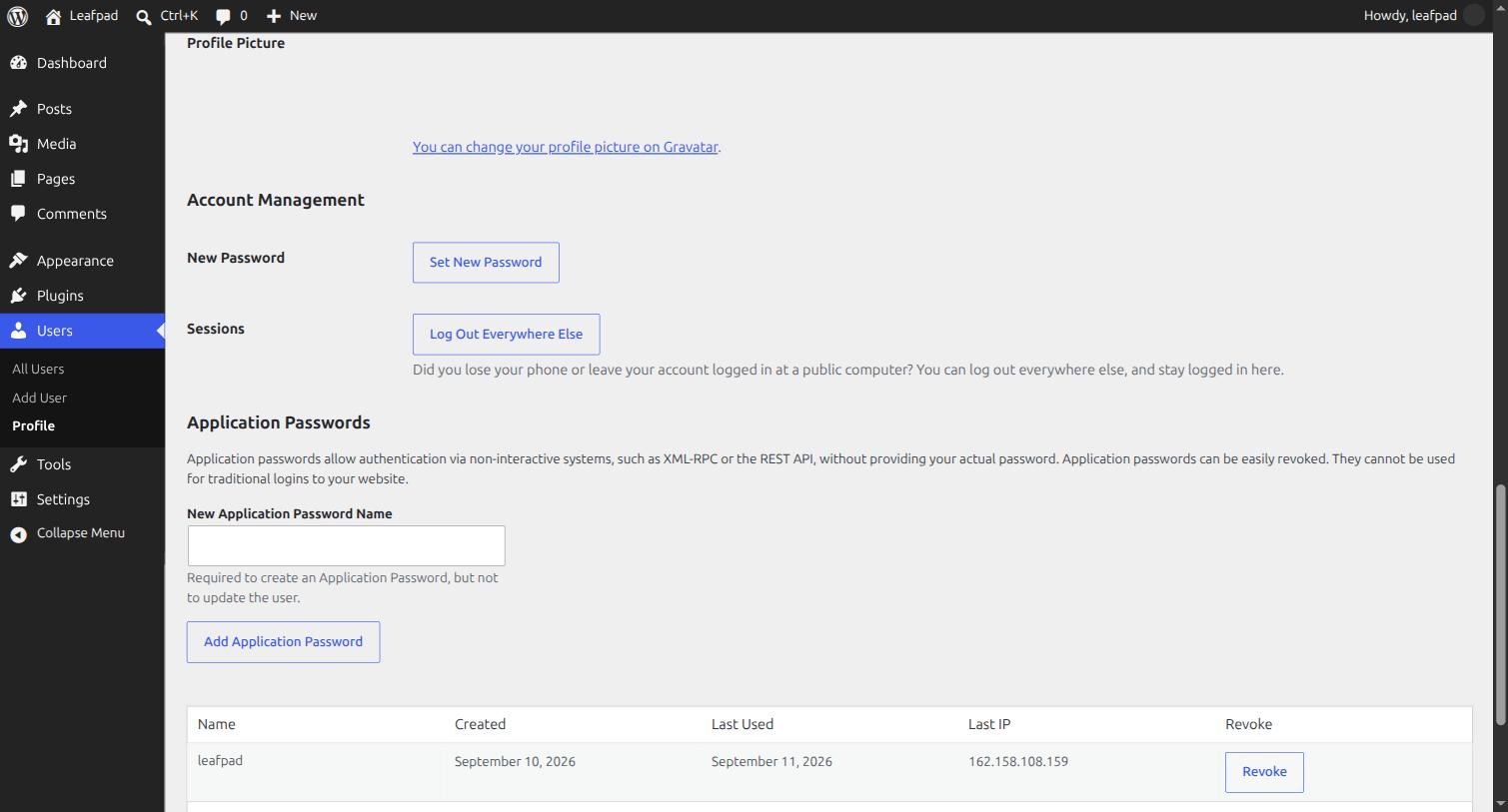
Application passwords authenticate REST API requests without exposing your real WordPress password.
You can revoke one at any time from the same screen; it takes effect immediately and only breaks
that one connection.
Step 2: Connect WordPress in LeafPad
In LeafPad, open Integration in the left sidebar, then the Apps tab.
Select the WordPress card.
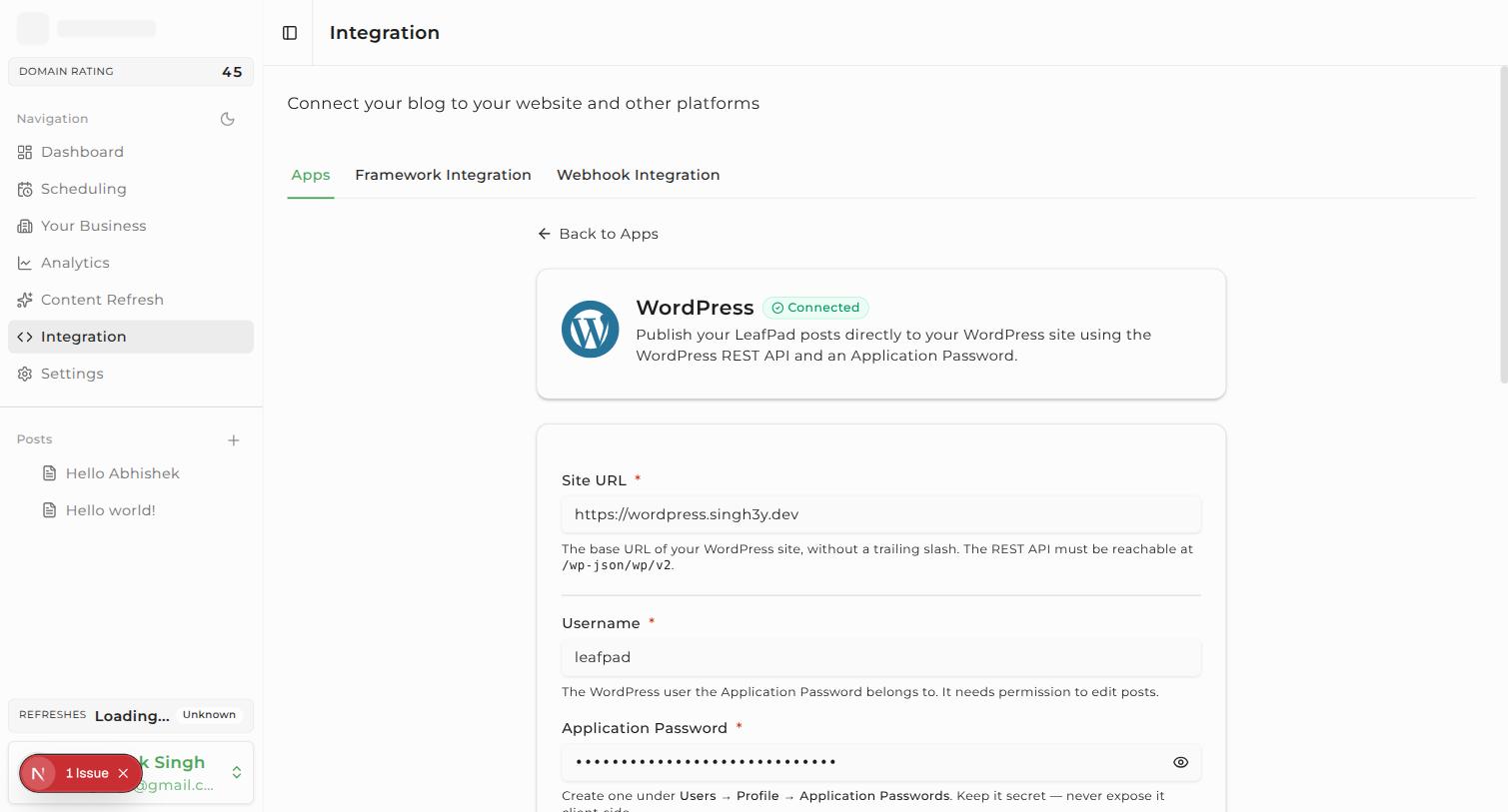
Fill in the connection form:
Site URL: your WordPress site's base URL, with no trailing slash (e.g.
https://your-site.com).Username: the WordPress user the Application Password belongs to. This user needs permission to edit posts.
Application Password: paste the password you copied in Step 1.
Decide on the two toggles below the credentials:
Automatic sync: when on, posts you edit in LeafPad are pushed to WordPress automatically every hour. Turn this off if you'd rather sync manually while you're still reconciling existing content.
Pull existing content from WordPress: when on, LeafPad imports the posts already on your WordPress site so Content Refresh can rewrite them, and keeps pulling in newly-published WordPress posts every hour. Posts you already manage in LeafPad are never overwritten.
Click Connect WordPress. If the credentials are valid you'll see a Connected badge appear next to the WordPress logo.
Step 3: Publish and refresh content
Once connected, two more actions appear on the WordPress integration page:
Sync Content (push)
Click Sync All Posts to WordPress to push every post in LeafPad to your site. Posts are matched to existing WordPress posts by slug: a match is updated in place, and anything without a match is created as a new post. The result shows how many posts were created, updated, or failed, with the reason for any failures.
Import Existing Content (pull)
Click Import Posts from WordPress to pull the posts already published on your WordPress site into LeafPad. This is what makes WordPress-authored post visible to
Content Refresh: the decay analysis matches Search Console pages against posts LeafPad knows about, so a post that only exists on WordPress can't be picked for a refresh until it's imported. Posts already present in LeafPad (matched by slug) are always skipped, so nothing you're already managing gets overwritten. Once a post is imported, refreshing it in LeafPad and syncing sends the rewritten version back to WordPress.
What happens automatically
With Automatic sync on, an hourly job pushes any posts you've published or edited in LeafPad to WordPress, so you don't need to click Sync yourself. With Pull existing content on, the same hourly job also imports any newly-published WordPress posts into LeafPad. Both toggles can be changed at any time from the WordPress integration page; the manual Sync and Import buttons always work regardless of the toggle state.
Troubleshooting
"Sync failed, check your connection and API credentials": confirm the Site URL has no typo and that
https://your-site.com/wp-json/wp/v2loads in a browser without a login prompt.Individual posts fail to sync: the sync result lists the failing slugs with the WordPress error message; the most common cause is the connected user lacking permission to edit posts, or a duplicate slug conflict.
A post never shows up as a Content Refresh candidate after importing: Content Refresh needs Search Console traffic data for that URL before it can be picked; import doesn't make a post eligible on its own.
Lost the Application Password: you can't retrieve it again. Revoke it under Users → Profile → Application Passwords in WordPress and generate a new one, then update the credentials in LeafPad.
Security notes
Treat the Application Password like any other secret; never share it or paste it into client-side code.
Scope it to a WordPress user that only has the permissions the integration needs (editing posts), not a full administrator if you can avoid it.
Revoking the Application Password in WordPress immediately breaks the LeafPad connection without affecting your main login.