Connect your Shopify store with LeafPad to automatically publish blog posts as Shopify articles using our secure app published on shopify. With just once click automate your content pipeline
How Shopify Integration Works
The Shopify integration uses the Shopify Admin API to publish your LeafPad posts as blog articles in your Shopify store. You install the LeafPad app directly from your Shopify store via OAuth, and LeafPad handles syncing automatically.
Note: The integration requests write_content and read_content scopes only. No order, customer, or product data is ever accessed.
Setup Instructions
Step 1: Open the Shopify Integration in LeafPad
Log in to your LeafPad dashboard
Navigate to Integrations → Apps in the sidebar
Click the Shopify card
Step 2: Connect Your Shopify Store
In the Connect your Shopify store card, enter your store URL
Accepted formats:
my-store,my-store.myshopify.com, orhttps://my-store.myshopify.com
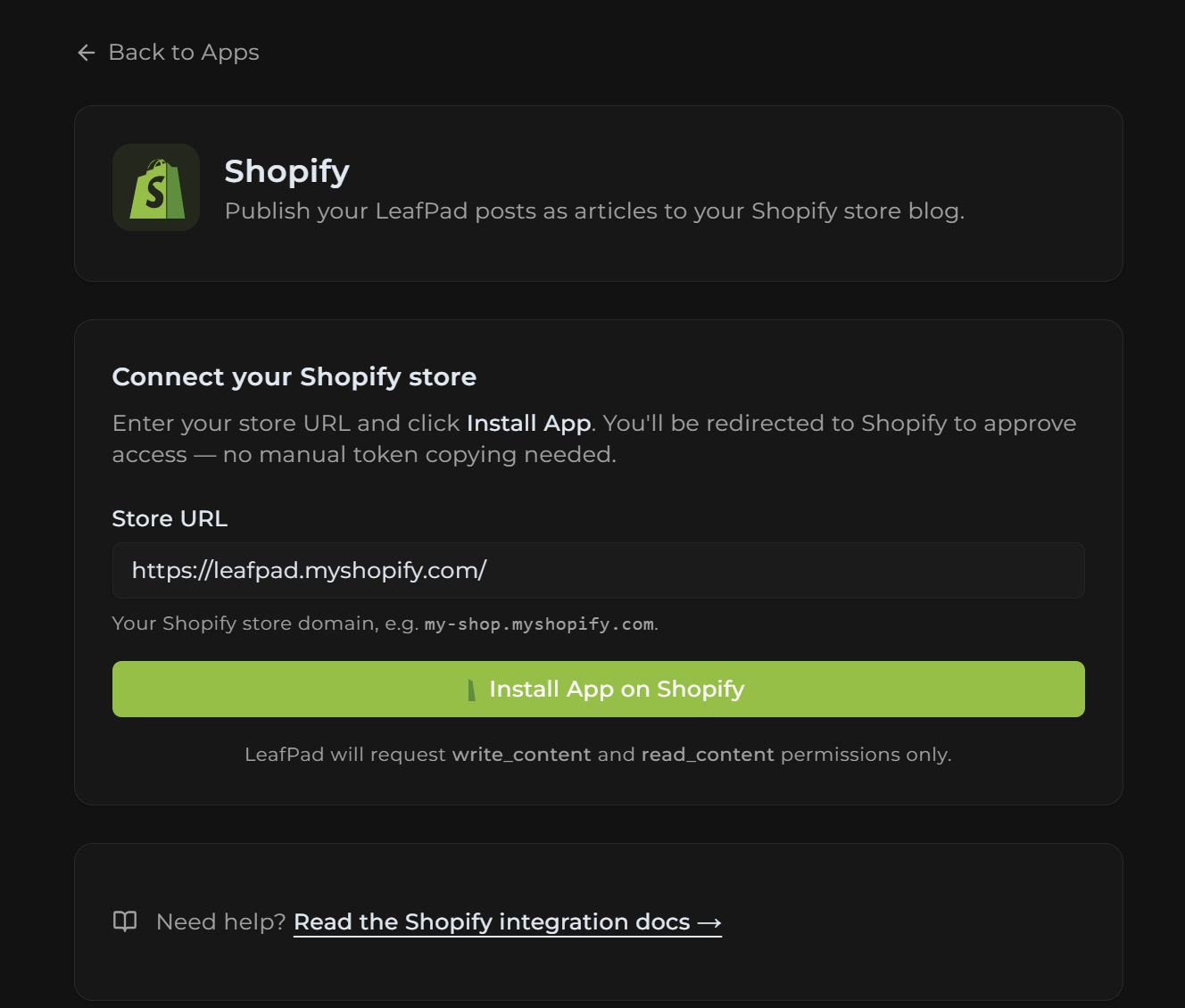
Click Install App on Shopify
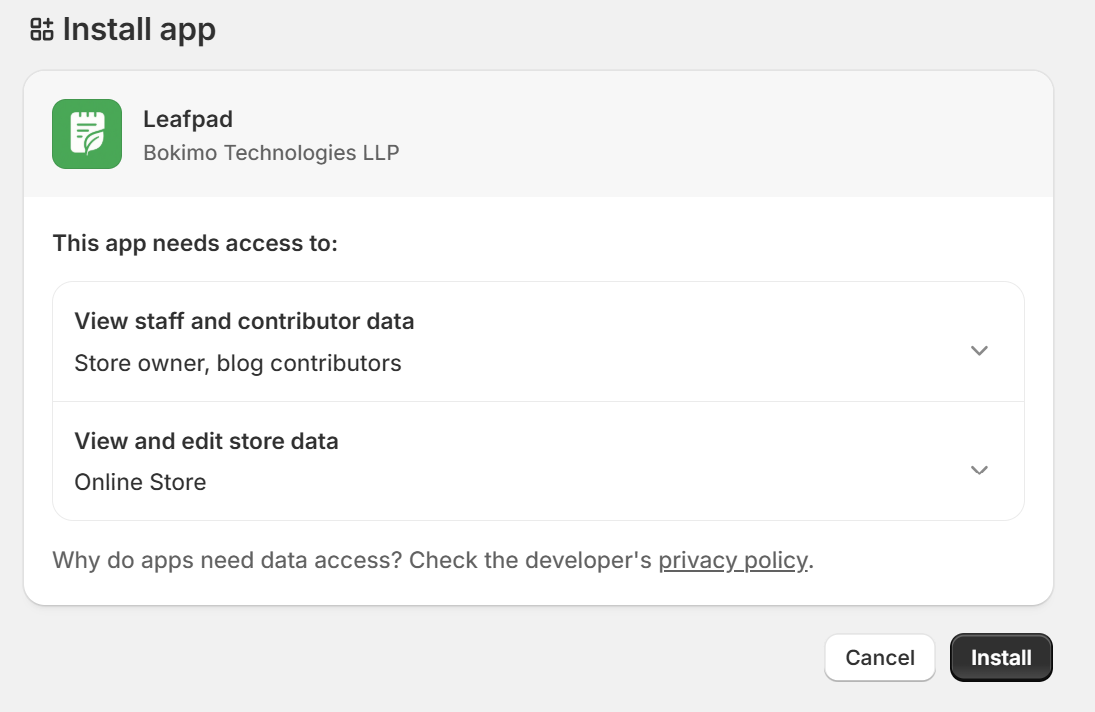
You will be redirected to Shopify's permission screen review the permissions and click Install
Shopify redirects you back to LeafPad. You will see a green Connected badge in the header
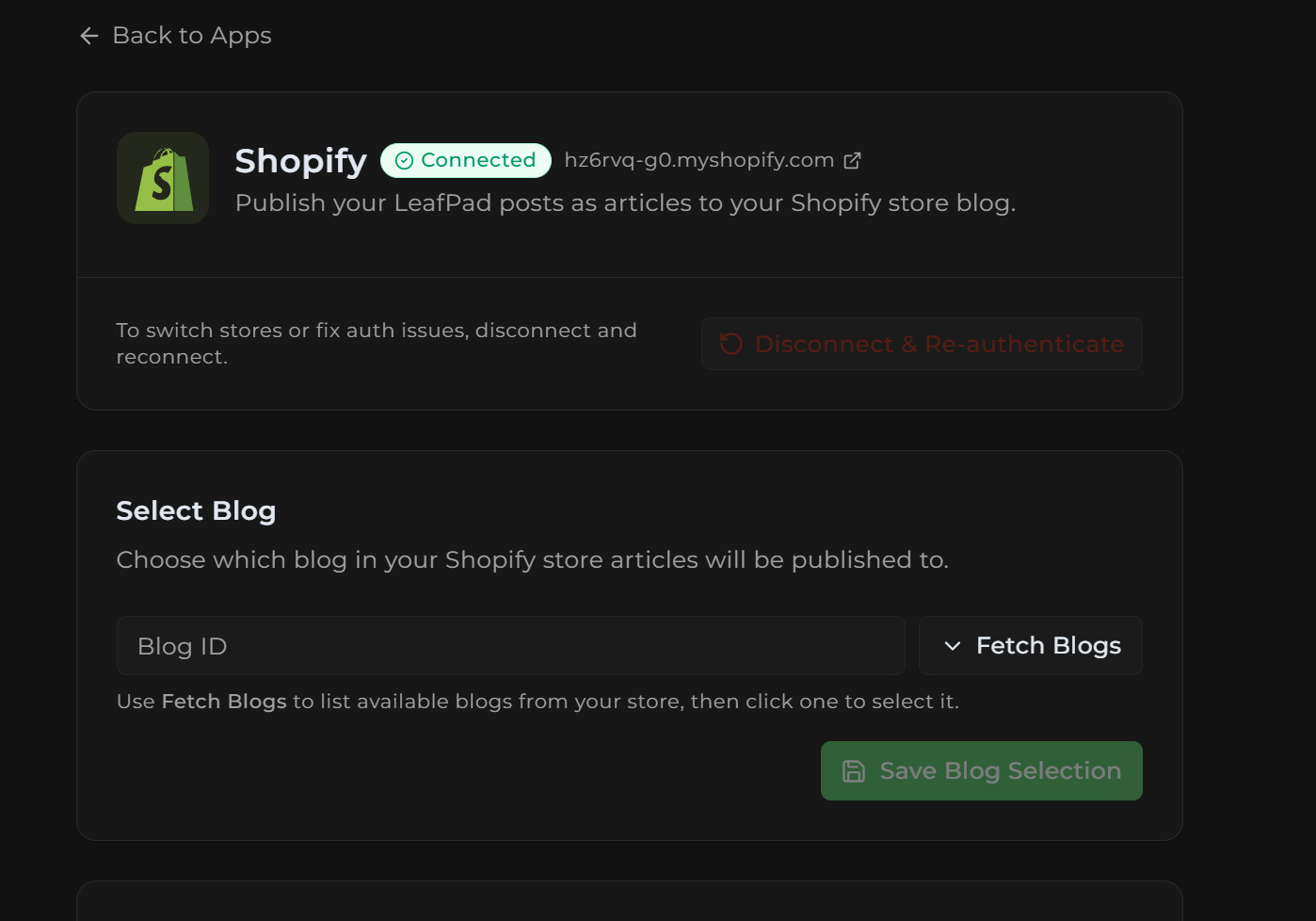
Step 3: Select a Target Blog
Shopify stores can have multiple blogs. You need to choose which one LeafPad posts should publish to.
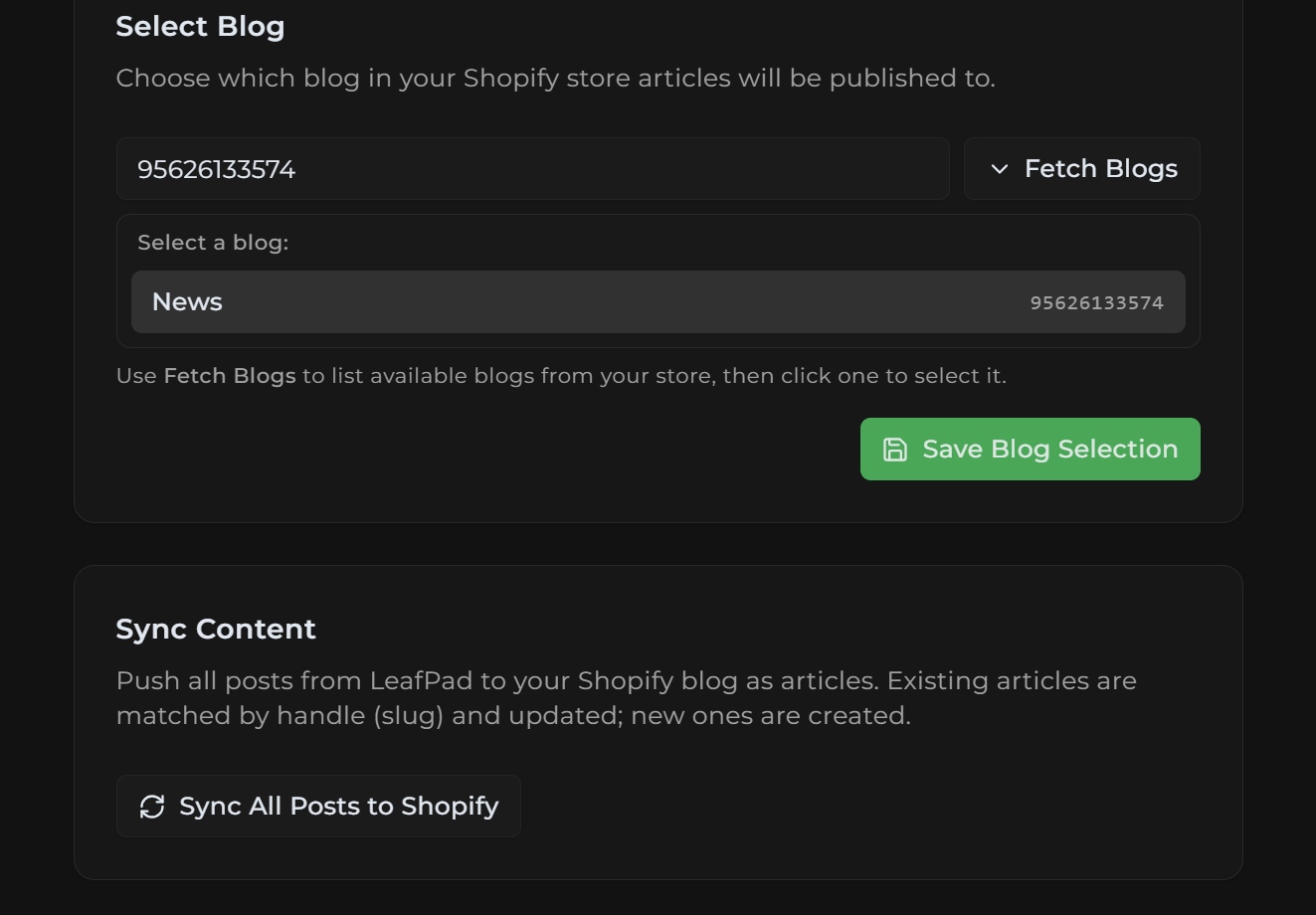
In the Select a Blog card, click Fetch Blogs
All blogs in your store are listed click a blog name to select it
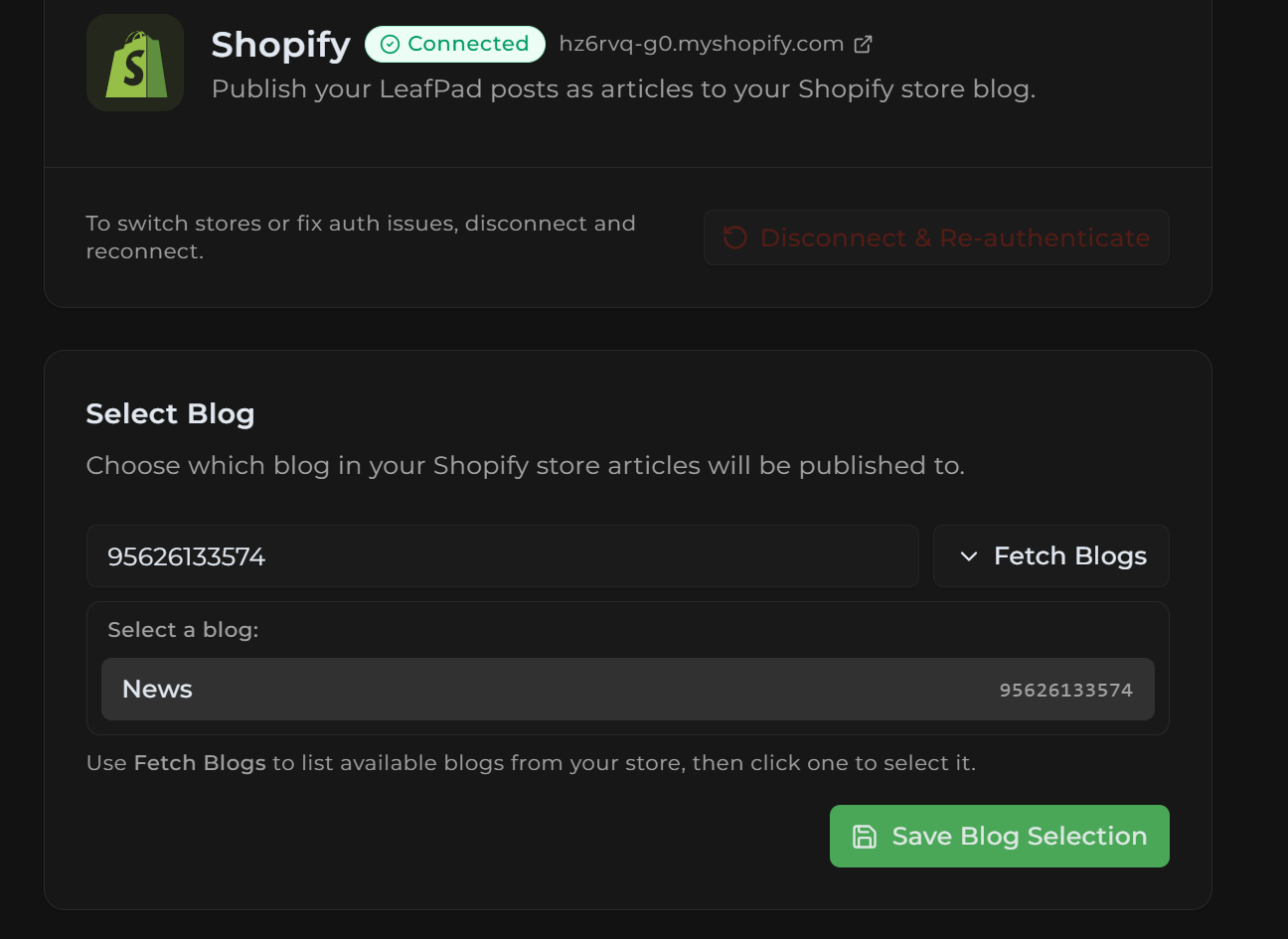
Click Save Blog Selection
If your store has no blogs, create one first in your Shopify Admin → Online Store → Blog posts.
Step 4: Sync Your Posts
Once a blog is selected, click Sync Now to push all your published LeafPad posts to Shopify. A background job also runs automatically and syncs posts updated in the last 3 hours.
What Gets Published
Post title
Full article content (HTML)
URL slug (handle) used to match and update existing articles instead of duplicating
Cover image
Excerpt / summary
SEO title and meta description
Tags
Author name
Disconnecting
To switch stores or fix an authentication issue, click Disconnect & Re-authenticate in the header card. This clears the stored token from LeafPad. Your Shopify articles are not deleted they remain in your Shopify store.
Troubleshooting
Security check failed (invalid_hmac)
Shopify's response signature could not be verified. Try connecting again. If it persists, the app credentials on the server may be incorrect.
Session mismatch (invalid_state)
Your browser session expired mid-redirect. Start the connect flow again without navigating away during the Shopify approval screen.
Failed to get access token (token_exchange_failed)
Shopify rejected the authorization code exchange. Make sure the LeafPad callback URL is listed as an allowed redirect URI in your Shopify app configuration.
Session expired (no_session)
Your LeafPad session expired during the OAuth flow. Log in to LeafPad and try connecting again.
Sync returns 0 posts
Only published posts are synced. Make sure your posts are set to Published status in LeafPad before running a sync.
Blog list is empty
Your Shopify store has no blogs. Go to Shopify Admin → Online Store → Blog posts and create a blog, then fetch blogs again in LeafPad.
Published with LeafPad