What changed: This guide was refreshed in August 2026 to reflect the current LeafPad onboarding flow, add a clear breakdown of pricing tiers, and cover how to connect your blog to modern front-ends like React and Next.js. The core five-minute setup process below is unchanged and still accurate.
How Do You Create Your First Blog Post With LeafPad?
You can go from signup to a live, SEO-optimized blog post in about five minutes: create an account, set up your organization, generate or write a post, and connect it to your site. Each step is detailed below.
Step 1: Create Your Account
Head to sign up and create your free account. You'll need:
Your email address
A password
Your name (this will be used as the default author name)
Once you verify your email, add your organization. Each account is restricted to one organization at a time, but you can create unlimited organizations if you manage multiple blogs or clients. If you want the full technical walkthrough alongside this quick-start version, the Quick Start docs cover the same flow with more configuration detail.
Step 2: Create Your Organization
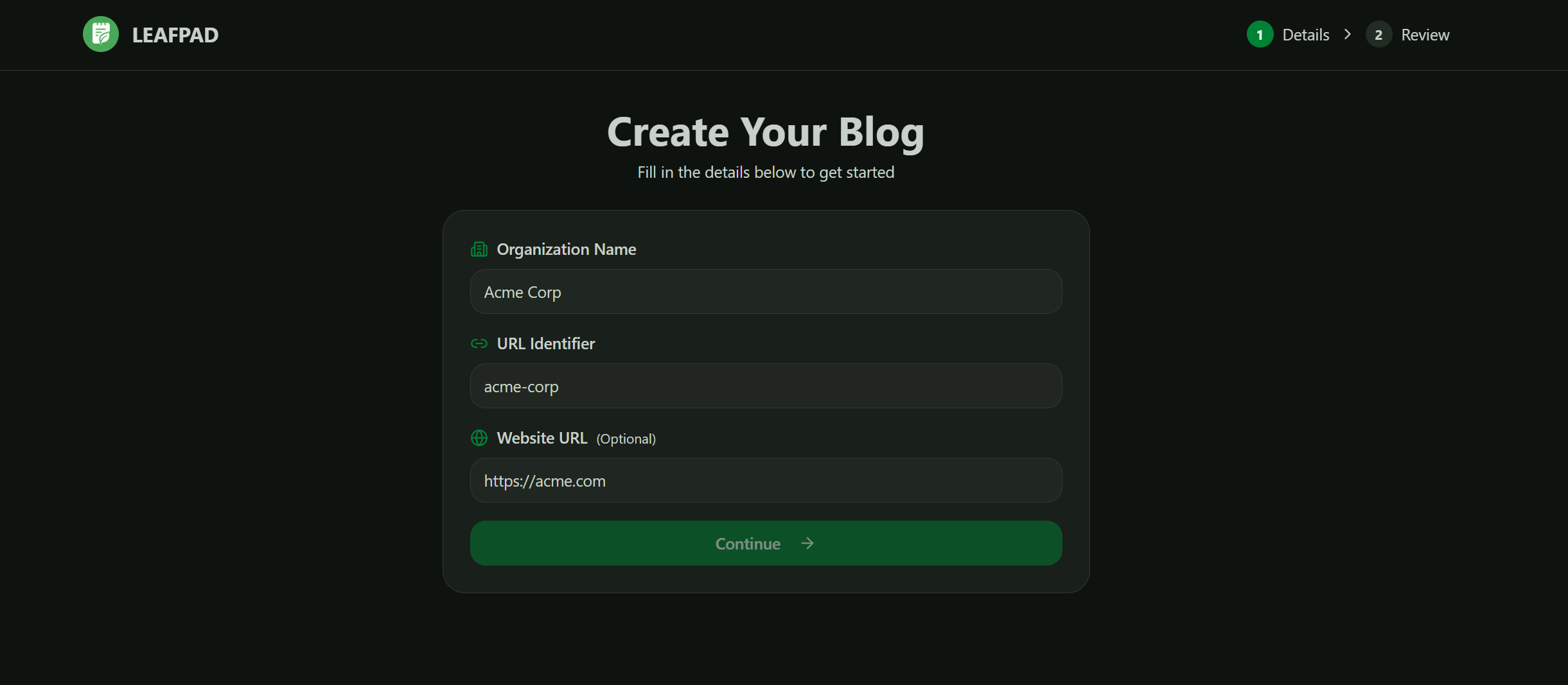
Organization Name: The name of your company, brand, or project. Used for dashboard identification when managing multiple blogs.
URL identifier: Your organization's unique identifier. Creates yourdomain.com/blogs/[slug]. Use lowercase letters, numbers, and hyphens only.
Website URL: The primary domain where your blog will be hosted. LeafPad uses this to analyze your existing site, understand your audience, and inform the topics and schedule it recommends for you.
Step 3: Create Your First Post
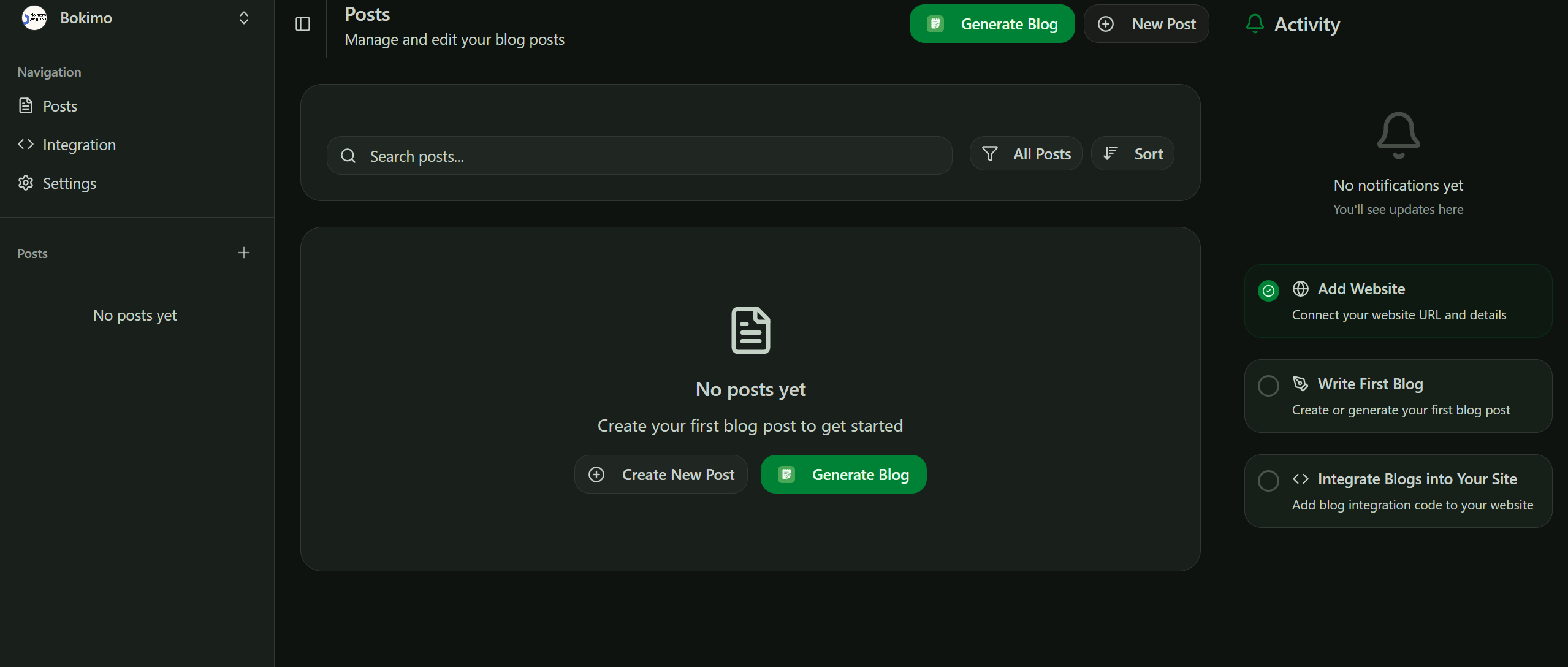
AI Generated Posts
Click "Generate Post" and let AI do the heavy lifting. LeafPad's generator analyzes your domain, niche, and existing content to draft a targeted, structured post rather than a generic template.
What you get:
SEO-friendly title and meta description
Keyword-aware content structure based on your niche
Engaging introduction and conclusion
Proper heading hierarchy (H1, H2, H3)
A draft that's ready to publish as-is or edit further
This mode is built for two situations: clearing writer's block on a single post, or scaling to a daily or weekly publishing cadence without hiring a writer for every article. Once you're happy with a draft's tone and structure, you can lock in your posting cadence and niche focus so future posts follow the same pattern automatically.
Manual Writing
Prefer to write yourself? Use the Notion-style editor for a distraction-free writing experience.
Smart SEO assistance as you write:
Real-time keyword suggestions
Readability score
Meta description optimization
Heading structure analysis
Internal linking recommendations
Type / for blocks, drag-and-drop images, and format with markdown shortcuts. The AI reviews your content as you type and surfaces SEO suggestions in the sidebar, so you write naturally and optimize deliberately rather than guessing.
Step 4: Connect It to Your Site
How you connect LeafPad depends on what your site is built with. If you're using an AI builder like Lovable, Bolt, or Replit, you can copy a single integration prompt from the dashboard and your blog is live in under a minute. If you're hand-coding a front-end, LeafPad has framework-specific guides so you're not reverse-engineering the API.
Your setup | Recommended path |
|---|---|
AI builder (Lovable, Bolt, Replit) | Paste the integration prompt from the sidebar — ready in under a minute |
React app | Follow the React Integration guide |
Next.js app | Follow the Next.js Guide for App Router support |
Custom backend or automation | Use the Webhooks docs to trigger workflows on publish |
Click "Integration" in the side menu to access the full set of docs for your stack.
Notice the difference this makes:
No "blog.yourdomain.com" subdomain splitting your SEO
No generic theme that looks like everyone else's blog
No disconnected design that doesn't match your brand
Just
yourdomain.com/blogs/techbuilding domain authority with every post
That's it — zero to a fully custom, SEO-optimized blog in under five minutes, with no theme lock-in. You can restyle your blog at any time; there's no premium theme tier to upgrade into.
Why Does Hosting Your Blog at /blogs Instead of a Subdomain Matter for SEO?
Hosting your blog on a subdirectory (yoursite.com/blogs) instead of a subdomain (blog.yoursite.com) matters because search engines can treat subdomains as separate sites, meaning your blog's authority doesn't reliably pass to your main domain.
Traditional approach (subdomains):
Main site:
yoursite.comBlog:
blog.yoursite.comProblem: Search engines can treat these as separate properties. Your blog's authority doesn't reliably help your main domain rank.
LeafPad's approach (subdirectories):
Main site:
yoursite.comBlog:
yoursite.com/blogs/techBenefit: Every blog post strengthens your main domain. All your SEO equity stays in one bucket instead of being split across two hostnames.
This is the same reasoning behind why large SaaS companies put their blogs at /blog or /resources rather than a subdomain — domain authority compounds when it's all in one place. If you're weighing LeafPad against a subdomain-based blog plugin or a full CMS migration, the platform comparison breaks down the trade-offs in more detail.
Running multiple blogs is even better for this:
yoursite.com/blogs/techyoursite.com/blogs/product-updatesyoursite.com/blogs/case-studies
All of these build authority for the same domain, get indexed as part of your main site, and contribute to one overall SEO footprint instead of three fragmented ones.
How Do You Customize Your Blog's Design in LeafPad?
You customize your LeafPad blog by describing the design you want in plain language during setup — matching an existing site, describing a new vision, or referencing a site you admire — and the AI generates matching components rather than forcing you into a fixed theme.
Option 1: Match Your Existing Site
When creating your blog, in the design preferences section, describe your main site:
"Match the design of acme.com - same header with logo and nav, same footer, same color scheme (blue primary, dark navy secondary), same typography (Inter font). Blog posts should have a clean reading layout with good whitespace."The AI analyzes this description and generates components that feel native to your existing site.
Option 2: Describe Your Vision
Don't have a site yet? Just describe what you want:
"Minimalist design with large typography, lots of whitespace, black and white color scheme with occasional gold accents. Magazine-style layout for blog index. Mobile-first responsive design."The AI builds it from scratch based on your description.
Option 3: Reference Examples
Point to sites you admire:
"Similar aesthetic to linear.app/blog - clean, modern, excellent typography, subtle animations. Dark mode support. Code blocks should have syntax highlighting like their docs."None of these choices lock you in. You can revisit design preferences later without migrating platforms, rebuilding templates, or losing existing posts.
How Much Does It Cost to Launch Your First Blog on LeafPad?
LeafPad's plans are built so you can start free, then scale as your publishing volume or client count grows, without needing to move platforms later. Instead of quoting exact prices here (which change over time), here's how to think about which tier fits your first blog:
Free / evaluation tier: Best for testing the setup flow, generating your first few posts, and confirming the integration works with your site before committing.
Starter-level paid tier: Fits solo creators or a single SaaS product that wants a regular publishing cadence without managing the content pipeline manually.
Agency-level paid tier: Built for teams running blogs across multiple client domains or organizations, where scale and multi-org management matter more than per-post cost.
Current plan details, limits, and what's included at each tier are kept up to date in the Business Overview docs — check there before budgeting, since tiers and inclusions are the kind of thing that changes as the product evolves.
Frequently Asked Questions
How long does it take to create your first blog with LeafPad?
Setup typically takes under five minutes: creating an account, adding your organization, generating or writing a post, and connecting it to your site. Design customization can add a few extra minutes if you want a highly specific look before your first post goes live.
Does a LeafPad blog hurt my main site's SEO if it's on a subdomain?
LeafPad doesn't use subdomains at all — blogs live at yourdomain.com/blogs/[slug] by design, so every post contributes to your main domain's authority instead of being isolated on blog.yourdomain.com, which is the more common source of split SEO equity.
Can I fully customize the design instead of using a theme?
Yes. You describe your desired design in plain language — matching an existing site, a new vision, or a reference site — and the AI generates matching components. There's no fixed theme library and no premium theme tier to unlock better designs.
Do I need to know how to code to set up LeafPad?
No coding is required to create an account, organization, or blog posts. Connecting the blog to your front-end takes a copy-pasted integration prompt for AI builders, or a short guide for frameworks like React or Next.js if you're coding the front-end yourself.
Can I connect LeafPad to a React or Next.js site?
Yes. LeafPad has dedicated integration guides for both: the React Integration guide and the Next.js Guide. Both keep the blog on your existing domain at /blogs rather than a subdomain.